Verify Corteiz Hoodies in Spreadsheet vs Google Sheets
-
Find your place
What This Corteiz Fall/Winter Hoodie Catalog Check Involves If you're planning to filter Corteiz fall/winter hoodies from Fashionreps' product catalog, the real task isn't just "finding a page that looks good." It's making sure the style, color, size information, and accessible link for the same candidate item all match up. The catalog page is great for discovering items and viewing images; Google Sheets is better for comparing multiple candidates side by side, ma
Editor score 4.2 / 5
What This Corteiz Fall/Winter Hoodie Catalog Check Involves
If you're planning to filter Corteiz fall/winter hoodies from Fashionreps' product catalog, the real task isn't just "finding a page that looks good." It's making sure the style, color, size information, and accessible link for the same candidate item all match up. The catalog page is great for discovering items and viewing images; Google Sheets is better for comparing multiple candidates side by side, marking status, and keeping a review record.
This article focuses on one pre-order task: organizing Corteiz fall/winter hoodie candidates into a list you can continue verifying. After reading, you should be able to:
- Locate Corteiz-related candidates in the website catalog.
- Record the product name, color, size info, QC image page, and product link.
- Filter for missing fields and items pending review in Google Sheets.
- Distinguish between "have viewed the page" and "confirmed suitable for ordering."
This method doesn't apply to post-order inventory, final shipping, taxes, or after-sales judgments. Product status, sizes, links, and images on the page may change, so reopen the source page to verify before saving. 🧭

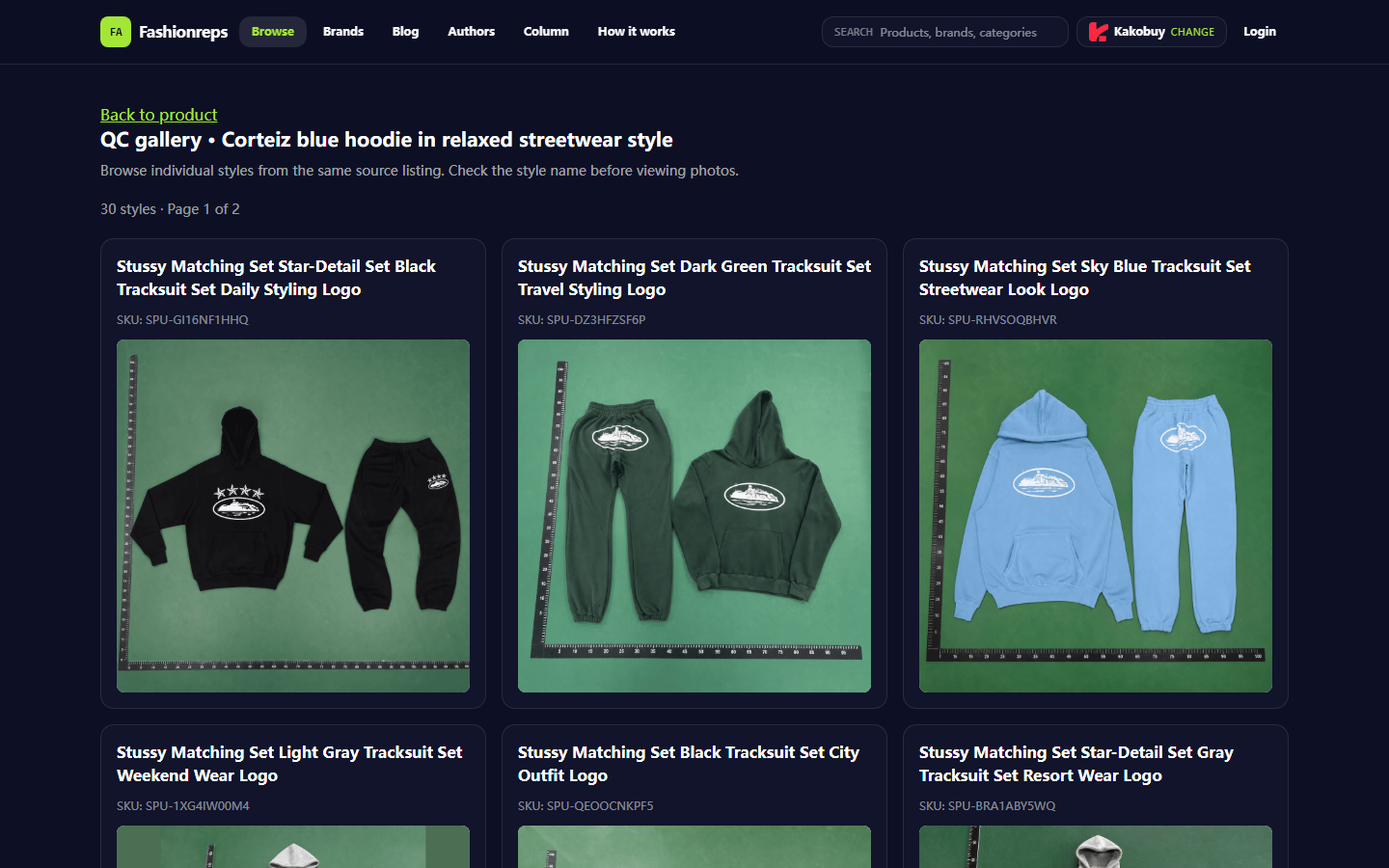
Figure: Fashionreps product catalog and QC image browsing scenario. The image helps identify page structure and doesn't mean sizes, materials, or stock have been independently confirmed.
How to Locate Corteiz Hoodies in the Fashionreps Site Catalog
Fashionreps' product discovery page is ideal for first seeing "what's available." Based on visible page features, the site offers entries for product browsing, brand navigation, search, QC images, and purchase platform selection. You can start by using search or brand navigation to locate Corteiz, then enter specific product or QC image pages to view candidate info.
Suggested order of operations:
- Start from product browsing or brand entry, don't just take the first search result as your final item.
- Use "Corteiz" as a brand or style clue, observe whether the title clearly indicates a category like hoodie, sweatshirt, or crewneck.
- Open the candidate page and verify that the title, visible colors, size fields, and images belong to the same style.
- If the page provides QC images, check the title and style name of the image page; don't name the product based solely on image color.
- Copy the current page URL, save it as a candidate link, and record the access date.
- If the page offers a purchase platform or shopping agent link, treat it only as a subsequent jump entry; orders, payment, and shipping should still be confirmed on the actual agent page.
The catalog page's strength is discovery and browsing. It can present product names, images, and QC information along a relatively close browsing path, but it isn't necessarily suitable for long-term saving of comparison results across multiple candidates. Having viewed a page doesn't mean color, size, or link has been verified.
How to Set Up Size, Color, and Link Fields in Google Sheets
Google Sheets isn't meant to replace product pages but to organize scattered page information into filterable records. It's recommended to have only one candidate style or one clear product link per row, avoiding mixing multiple colors and pages in a single row.
You can use the following fields:
Field How to Fill Key Checkpoints Product Name Copy the current visible page name Does the name include Corteiz and the hoodie category? Color Fill based on page text; mark as pending if unclear Don't name based solely on screen display color Size Record the size range listed on the page Mark if missing, ambiguous, or image/text mismatch Product Link Save the specific product or QC page URL Does it still lead to the corresponding candidate when opened? Image Status Viewed, not viewed, or inaccessible Does the image belong to the current style? Link Status Normal, redirect, broken, pending review Don't use a search results page as a product link Access Date Record the most recent date you opened the page Time-sensitive info needs re-confirmation Next Step e.g., measure, inquire, exclude, or compare Make the record drive the next action For the size field, don't just write "has sizes." If the page lists S, M, L, XL, record the full visible range; if there's only images or title without clear size descriptions, write "no clear size info," don't fill in based on a common size chart.
Similarly, be cautious with color. If the page title says blue, record it as blue or "blue"; if the image looks grayish blue but the page doesn't clarify, keep the page's original word and note "visual impression needs review." This is more reliable than treating visual judgment as a confirmed color.
Verification Steps for the Same Candidate in Both Tools
First discover the candidate in the Fashionreps catalog, then create a record in Google Sheets, and finally return to the original page for a reverse check. This order reduces the risk of mixing information from different pages into the same row.
Step 1: Create a Candidate Record
As soon as you find a possible Corteiz fall/winter hoodie, immediately save the product name, current link, and access date. Don't wait until after browsing many pages to fill in from memory, because similar titles and same colors can easily be confused.
Step 2: Separate Product Page and QC Image Page
If the product page and QC image page have different URLs, save them separately, or clearly note their relationship in the remarks. The product page is for confirming the product name and purchase entry; the QC page is for viewing currently visible images. QC images can only help you observe details shown on the page; they can't prove you've received the actual item, nor replace measurements or seller confirmation.
Step 3: Verify Name, Color, and Size
Compare the product name in Google Sheets word-by-word with the page title. Color and size should prioritize page text; if the page doesn't have explicit content, fill in "not stated" or "pending review." Don't guess just to make the sheet look complete.
Step 4: Reopen the Link
Before saving, reopen the link to confirm it's still accessible and the page content still matches the current row. If the page redirects to a brand page, tag page, blank page, or another product, change the link status to pending review or broken, rather than continuing to use the old title.
Step 5: Mark Pre-Order Gaps
When there are gaps in size chart, color description, images, or links, write specific actions in the "Next Step" field, such as "need seller to confirm chest width," "waiting for page recovery," or "compare with another candidate." "Pending" is too vague to help later review.
Differences in Mobile Browsing, Image Viewing, and Link Copying
Mobile is convenient for quickly discovering candidates and viewing images, but pages on narrow screens may collapse some fields, and when copying links it's easier to accidentally copy search, share, or redirect URLs. On mobile, open the page menu to confirm you've copied the current page URL, and paste it into the sheet immediately, then test it again.
For image viewing, mobile is good for zooming in on QC images to see if they're clear and belong to the current style, but don't treat screen colors as a reliable standard. Monitors, lighting, and compression all affect appearance. Sizes, materials, and stock should still be based on page text or verifiable seller information.
Google Sheets mobile is suitable for updating status, adding notes, and simple filtering. When you need to view multiple fields at once, compare multiple candidates, or check duplicate links, desktop is usually easier to spot issues. "Easier" here is an operational suggestion, not a tested speed comparison across devices.
When to Use the Site Catalog vs. Spreadsheet Organization
The site catalog provides context: where products come from, how pages are categorized, where images and QC info are viewed. Google Sheets provides structure: which fields are filled, which links are broken, which candidates need further confirmation.
Task Better with Site Catalog Better with Google Sheets Discover new candidates Browse, search, brand entry Record candidate name and source View page images Product or QC image page Record whether image has been viewed Compare multiple colors Confirm color text and images page by page Filter, group, and annotate by color Check sizes View the size field on current page Mark missing, conflicting, and pending inquiry items Check links Open and confirm page correspondence Centrally mark normal, broken, and pending review Team collaboration Share page context Assign reviewers and keep change history Don't treat text records in Google Sheets as real-time inventory. The sheet is just an organized result from a specific visit; after page changes, update the access date and status.
How to Mark Broken Links, Missing Sizes, or Unclear Update Times
When encountering a broken link, keep the original link first, don't delete it. Change the status to "broken" or "redirect," and note what you saw when you reopened the page. This prevents team members from thinking the candidate never existed and makes it easier to check later if it's restored.
For missing sizes, use "no clear size info" rather than inferring a range. If the image shows a size label but the text is unreadable, record "image inconclusive," don't turn blurry content into a definitive value.
When the update time is unclear, write today's verification date in the access date field, and mark stock, price, or purchase availability as "needs pre-publish review." This article doesn't provide current prices, stock, or final shipping conclusions, because those must be re-confirmed based on the actual page and destination conditions.
Combining Both Tools for Pre-Order Review
A workable review process:
- In Fashionreps, search for candidates by Corteiz and hoodie category.
- Open specific pages and record page title, color, size, and product link.
- If there are QC images, open them separately and confirm the image page title matches the candidate.
- Enter the info into Google Sheets, one candidate per row.
- Use filters to find records with empty color, unstated size, or pending link review.
- Go back to the site and open these records one by one, updating access date and verification result.
- Only change status to "ready for next review" when product identity, color, size info, and link relationship are all clear.
- Before ordering, re-confirm product page, available sizes, seller info, agent page, and destination cost conditions.
It's advisable to separate "ready for next review" from "suitable for ordering." The former only means the information is fairly complete; the latter still requires considering measurements, seller response, stock, price, shipping, taxes, import restrictions, and return/exchange conditions.
Next Steps Action Checklist
After completing the sheet, address the highest-risk records first, not the prettiest pictures:
- Filter candidates without clear sizes and prepare to ask sellers for key measurements.
- Filter candidates whose colors rely only on images; go back to the page to confirm text descriptions.
- Open all links marked normal to check they still point to the same style.
- Keep original records for redirects, blank pages, and tag pages, and mark them as pending review.
- Record today's verification date, and re-confirm time-sensitive facts before publishing or ordering.
- Don't publicly share order numbers, payment info, full shipping labels, or other personal data to prove the verification process.
The final result shouldn't just be a "list of Corteiz hoodies," but a candidate list that shows sources, field statuses, and next actions. The site catalog helps you discover and understand pages; Google Sheets helps you organize and collaborate. Combined, they help you spot pre-order issues like missing sizes, color misjudgments, and link mismatches earlier. ✅
Community feedback
5 approved
Reader score 4.2 / 5 (5 ratings)
- tr3y 3 / 5
- Works, but honestly for like 3 items I just bookmark the tabs and call it a day. Sheets only pays off once the list gets past maybe 10 candidates. Still, no argument on verifying sizes before checkout.
- kofi_ab 4 / 5
- Solid workflow. I usually sort candidates by whatever color I actually wear most so I stop impulse-adding five hoodies I'll never rotate. Google Sheets freeze-first-row helps a lot when the list gets long.
- Selin Kaya 5 / 5
- This is exactly how I compare fall/winter Corteiz drops now. Images from the catalog, dimensions and links in the sheet, and a little notes column for fit comments. Saved me from ordering the wrong size twice already.
- dan_repz 4 / 5
- Been doing this the clumsy way for months, opening each hoodie tab then losing track. Making a Google Sheet with columns for style, color, size and the link honestly saves so much headache. One thing I'd add: paste the size chart into its own tab, because the catalog pics never show the measurements clearly.
- Mirela V 5 / 5
- the part about matching style+color+size+link for the SAME item is the real tip here. i got burned before ordering a washed black one and the link was for the grey colorway lol. cross-checking in sheets now every time.
Keep reading on this site
Black Drawstring Athletic Shorts: Color & Styling Tips / Supreme, Polo, Carhartt Winter Flat-Lay: Color & Styling / Winter Streetwear Flat Lay: Jackets, Sweats & Details