Adidas Spreadsheet vs Google Sheets for Jacket Search
-
Find your place
First, clarify your filtering goals for Adidas fall/winter jackets If your goal is to identify jackets suitable for fall and winter from the Adidas product listings on fashionreps, the real task isn't just "finding a good-looking photo." You need to confirm four things at once: the item is actually in the jacket category, the color description is reasonably clear, the page provides enough fit or size information to evaluate, and th
Editor score 4.2 / 5
First, clarify your filtering goals for Adidas fall/winter jackets
If your goal is to identify jackets suitable for fall and winter from the Adidas product listings on fashionreps, the real task isn't just "finding a good-looking photo." You need to confirm four things at once: the item is actually in the jacket category, the color description is reasonably clear, the page provides enough fit or size information to evaluate, and the product link still opens. 🧥
This guide is for people who already have a batch of candidate listings and want to filter, organize, and double-check them further. After reading, you should be able to complete a basic verification workflow from browsing the site to recording in Google Sheets. It is not meant to treat names, images, or prices in a sheet as up-to-date stock, final cost, or verified buyer reviews.
How to search by category and keywords in the fashionreps site-style spreadsheet
The fashionreps site navigation includes entries for brands, blog, authors, and product catalogs. When browsing Adidas fall/winter jackets, you can start from the brand directory, then narrow down using on-page search or product cards one by one. The advantage of the site-style spreadsheet is that product records are already presented as catalog cards, usually showing the product name, reference price, image entry, category, and purchase entry directly.
Start with broader searches, for example:
- Adidas jacket
- Adidas padded jacket
- Adidas winter jacket
- Adidas vest
- Adidas F1 jacket
- Adidas reversible jacket
Then, judge from the visible information on the product page whether it truly fits your target. Don't place a record into "suitable for fall/winter" just because the title contains "jacket." Also check if the page mentions padding, stand collar, insulation layer, fabric, water-repellent shell, or layering use.
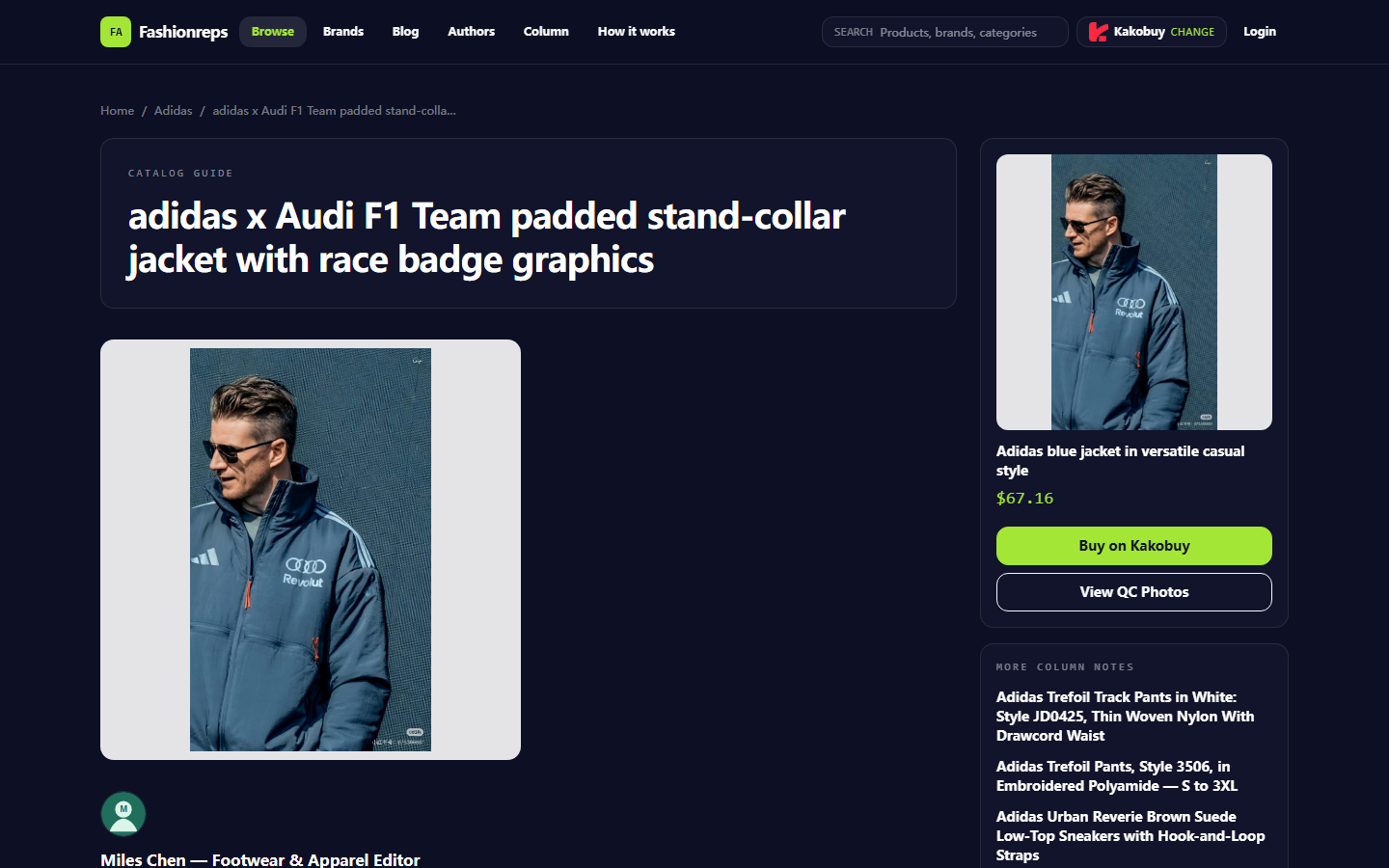
In the provided sample Adidas product page, the product title is "adidas x Audi F1 Team padded stand-collar jacket with race badge graphics." The page describes it as a loose-fitting jacket with a stand collar and lightweight quilted padding, while also alerting readers to inconsistencies in color description and size information. This example shows that site browsing is not just about finding products; it's also about discovering fields that need further verification.
Sample image:

On the site page, product name, image, reference price, and purchase entry are generally good for initially discovering candidates; however, you should still return to the product detail page to confirm each item. The reference price is not the final payment amount including service fees and international shipping, and the page clearly reminds you to confirm related fees on the shopping agent website.
How to set up color, fit, and link filters in Google Sheets
When the number of candidate products grows, Google Sheets is better for consolidating fields and multi-condition filtering. It's recommended to keep one product record per row, with each column representing a field that can be independently verified.
You can use the following fields:
- Product name
- Brand
- Category
- Color original text
- Color classification
- Fit
- Fall/winter features
- Size range
- Product page URL
- Image URL
- Reference price
- Page verification date
- Color consistency
- Link opens
- Notes
For the color field, don't compress different original descriptions into a single conclusion. For example, if the page title says "blue" while the product description mentions a "dark grey base," record the color original text as two separate entries: "blue" and "dark grey base." Set the color classification tentatively as "blue or dark grey, to be confirmed." This preserves page evidence and avoids writing vague information as a definite color. 🎨
In Google Sheets, you can first enable filters, then filter the "Category" column for candidate values like jacket, padded jacket, vest. Next, filter the "Fall/winter features" column for records containing padded, quilted, warm, layering, etc. For colors, use "text contains" searches for words like black, blue, grey, navy, cream, but always keep the original description—don't leave only the translated color.
If you need to filter for records that meet multiple conditions simultaneously, you can use this logic:
- Category is coat, jacket, or vest.
- Page description contains at least one fall/winter structure or usage scenario.
- Color field has a clear original text, or is marked as to-be-confirmed.
- Product link opens normally.
- Important size or fit information is not missing.
How to cross-check site product cards and sheet columns
The site is good for discovery and viewing context; Google Sheets is good for horizontal comparison and keeping verification trails. The two should not replace each other. A product page on the site may contain complete descriptions, while a row in a sheet often holds only a summary; if the summary is not checked against the page, it's easy to mistake old records, truncated text, or manual classification as fact.
Verification item Site page focus Google Sheets recording method Product identity View full product name, brand, and category Keep original name, don't replace with custom abbreviations Color Compare title, description, and image caption Record color original text, classification, and conflict notes separately Fit Look for loose, oversized, straight, or other page descriptions Write fit original text, note source as product page Size Check which sizes the measurement table covers Record size range and units as to-be-confirmed Price View reference price and fee notices Mark as reference price, not final landed price Link Open product page and confirm it's not empty or error Record verification date and open result Take the sample page as an example: the measurement table lists S to XL with length, shoulder width, chest, and sleeve length; other specification text on the page also mentions 2XL and 3XL. Therefore, the sheet should not simply state "S–3XL in stock." A safer record is "Measurement table covers S–XL, page specs also list 2XL and 3XL; actual available sizes need confirmation before ordering."
How to preserve evidence when images and color names don't match
Images only help you spot visual differences; they cannot prove the exact color on their own. Lighting, compression, screen settings, and shooting angles can all affect judgment. Especially colors like dark navy, charcoal, black, and navy blue should not be replaced based on thumbnails alone, ignoring the page's text description.
Use a three-layer recording approach:
- Layer 1: original color text from the page title.
- Layer 2: original color text from the product detail description.
- Layer 3: image observation result, marked as "image observation" not "confirmed color."
If all three match, you can mark the record as "description consistent on page." If title, text, and image disagree, keep the conflict—don't force a single color just for filtering convenience. The sample page is exactly such a case: the title contains "blue," while the feature description mentions "dark grey base." In that case, it's better to put it in a "to be confirmed" filter group and confirm the actual color with the seller before purchasing. 📝
Steps for opening, copying, and checking product links for dead links
Link organization should be based on the product detail page, not just copying the search results page or brand aggregation page. For each record, follow this sequence:
- Enter the detail page from the site product card.
- Confirm the page shows a clear product name and enough product information.
- Copy the product page URL from the browser address bar.
- Paste the original URL into the product page URL column in Google Sheets.
- Re-open that URL to confirm it doesn't redirect to an empty page, tag page, or error page.
- Record the check date in the "Page verification date" column.
- If the link cannot be opened, mark the status as "to be rechecked"—don't delete the original record.
If the purchase button on the page requires selecting a shopping agent first, don't interpret the button showing "purchasable" as confirmed stock. The page sample shows that the purchase entry changes depending on the selected agent, and final product price, service fees, and international shipping costs still need to be confirmed on the shopping agent's website. A valid link only means the page is accessible, not that the product is in stock or the seller can ship. 🔗
Usage boundaries of the two methods on mobile and desktop
Mobile is better for quickly browsing product images, opening a single detail page, and recording a few candidates. On a small screen, long product names, specification text, and table columns are easily truncated, so it's not suitable for extensive color classification or complex multi-column comparison.
Desktop is better for opening the fashionreps product page and Google Sheets side by side, copying names, colors, sizes, and links one by one, and viewing complete descriptions. For batch filtering, freezing header rows, adjusting column widths, or checking duplicate links, desktop is usually more convenient.
If you must organize on mobile, keep only the most essential fields: record product name, original color, product page URL, and items to confirm. Add fit, size, and link status later on desktop. Don't delete color conflicts or source dates just to shorten content on mobile.
When to choose site browsing, sheet organization, or a combined process
If you don't have any candidate products yet, start with the fashionreps site catalog and search functions. Site cards let you see product context and are better for judging whether a record truly belongs to the Adidas fall/winter jacket category.
If you've already collected multiple candidates, or want to repeatedly filter by conditions like black, blue, dark grey, stand collar, loose fit, and working links, move to Google Sheets. The value of a sheet is in unifying fields, preserving conflicts, sorting, and collaboration—not replacing the product detail page.
The most practical combined workflow is: discover candidates on the site, verify information on the detail page, record fields in Google Sheets, and then return to the site to spot-check key records. For items with inconsistent color descriptions, inconsistent size ranges, or unclear link status, temporarily keep them as to-be-confirmed rather than filling the sheet with speculation.
Final step: use a verification checklist to confirm candidate records
Before adding an Adidas fall/winter jacket to your final candidate list, go through these checks row by row:
- Does it actually belong to coat, jacket, or vest, not hoodie, pants, or other clothing?
- Have you saved the original color description from the page?
- Are title, detail text, and image consistent; if not, have you kept the conflict?
- Have you recorded the fit description and visible size information?
- Have you distinguished reference price from final payment cost?
- Can the product link be reopened?
- Have you recorded the page verification date?
- Have you avoided treating catalog descriptions as buyer reviews, stock guarantees, or quality guarantees?
After completing this checklist, you'll have a set of records better suited for further price inquiries and pre-purchase confirmation, but you still cannot infer real-time stock, final shipping, taxes, customs results, or after-sales policies. Before actually ordering, recheck product availability, service fees, international shipping, destination country taxes, and applicable after-sales terms on your chosen shopping agent page.
Article images

Community feedback
5 approved
Reader score 4.2 / 5 (5 ratings)
- skeptical_sam 3 / 5
- Meh, this seems like overcomplicating. Just use the search function on the spreadsheet. The article makes it sound like a whole process. Not wrong though.
- coldweather_kid 4 / 5
- Google Sheets is way easier for filtering on mobile, but the spreadsheet has more reps listed. Wish the article compared mobile usability more. Still, good points about verifying jacket category.
- winter_ready 4 / 5
- Good write-up. I like that you emphasize checking if it's actually a jacket and not a hoodie. Too many listings are mislabeled. Would be nice to see a direct link to the spreadsheet.
- repfinder88 5 / 5
- This breakdown is super helpful. I've been using the spreadsheet for months and never thought about the color description issue. Just copped a couple Adidas jackets for winter, thanks for the tips on checking fit info.
- adidas_archivist 5 / 5
- Finally someone addresses the fit info problem. Half the time the size charts are missing, and you end up guessing. The spreadsheet method saved me from a bad purchase last month.
Keep reading on this site
Black Drawstring Athletic Shorts: Color & Styling Tips / Supreme, Polo, Carhartt Winter Flat-Lay: Color & Styling / Winter Streetwear Flat Lay: Jackets, Sweats & Details